
Waiting list on a team
Let people join a team's waiting list when the team is full, or have everyone go through the waiting list, and give them a spot from the team page.
A team can have its own waiting list. You choose whether it is only used when the team is full, or whether everyone who signs up for the team goes through the waiting list, so you decide yourselves who gets a spot. People on the waiting list do not take up a spot until you give them one from the team page. This is a waiting list per team. The event's shared waiting list, where people go when they cannot choose any team, is something else. See How the waiting list works.
Switch on the waiting list for a team
- Go to Teams > Teams, and open the team.
- Click Edit Team. If you create a new team with New Team, the field is there too.
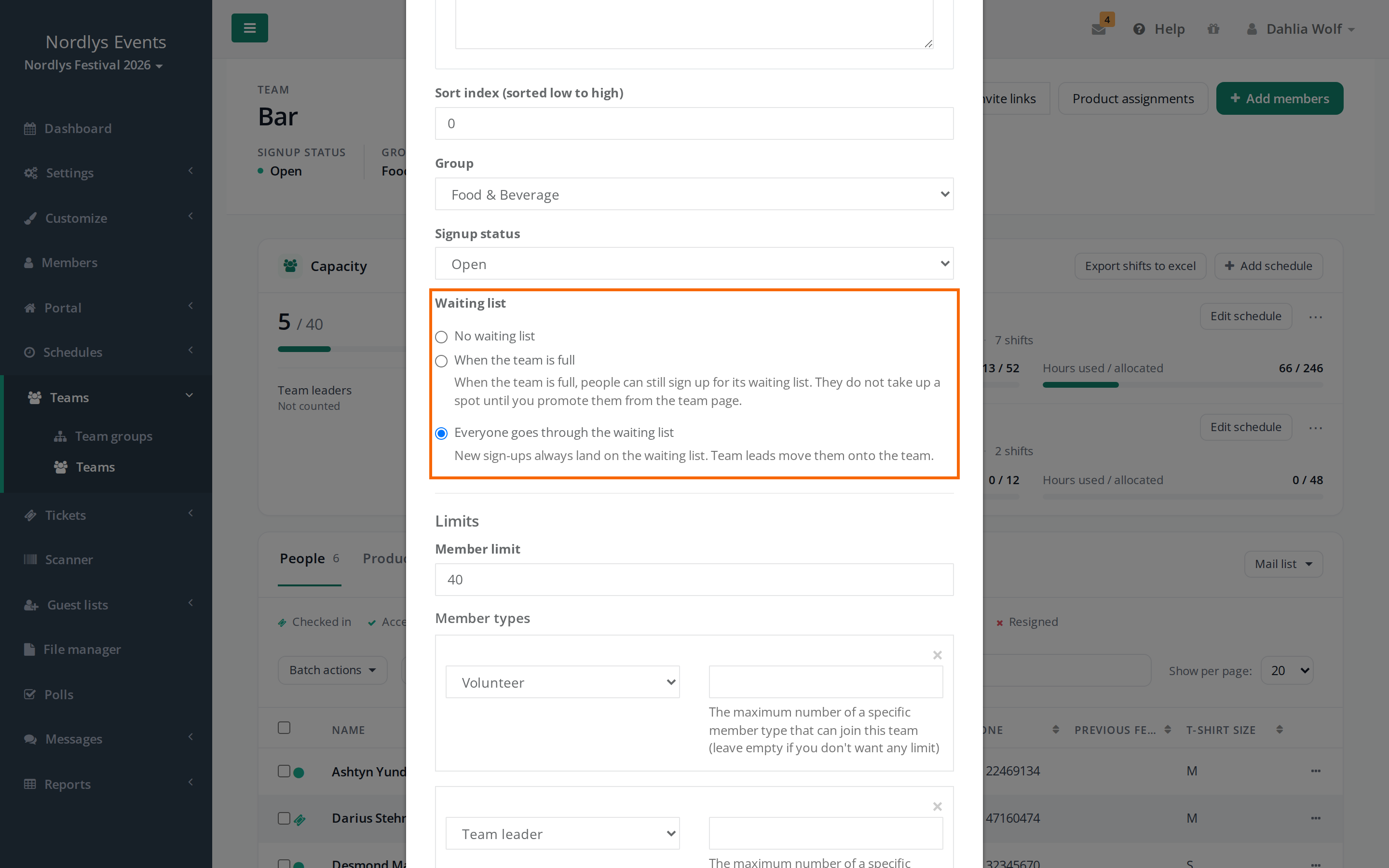
- Choose under Waiting list, right below Signup status:
- No waiting list: The team has no waiting list. This is selected from the start.
- When the team is full: People can sign up for the waiting list once the team is full.
- Everyone goes through the waiting list: All new sign-ups go on the waiting list, even when the team has free spots.
- Save.
Only admins and team group leaders can edit the team. See Set up teams and team groups.
Let everyone go through the waiting list
Choose Everyone goes through the waiting list when you want to decide yourselves who joins the team. It fits, for example, when the team leaders call each person before they get a spot.
- Everyone who chooses the team during signup or uses the team's invite link goes on the team's waiting list, no matter how many free spots the team has.
- The team leaders promote people from the Waiting list box on the team page, as long as the team has free spots. See the section "Give someone a spot" below.
- The team's invite link works as a link to the team's waiting list. You can, for example, put it on your website next to the description of the team. See Invite crew members to a team.
- People who are already on the team keep their spot when you switch to Everyone goes through the waiting list.
- Admins, team group leaders and team leaders can still put people straight on the team, for example with Add to team.
If you later switch to When the team is full or No waiting list, the people already waiting stay on the waiting list until you give them a spot or remove them.
What the crew member sees
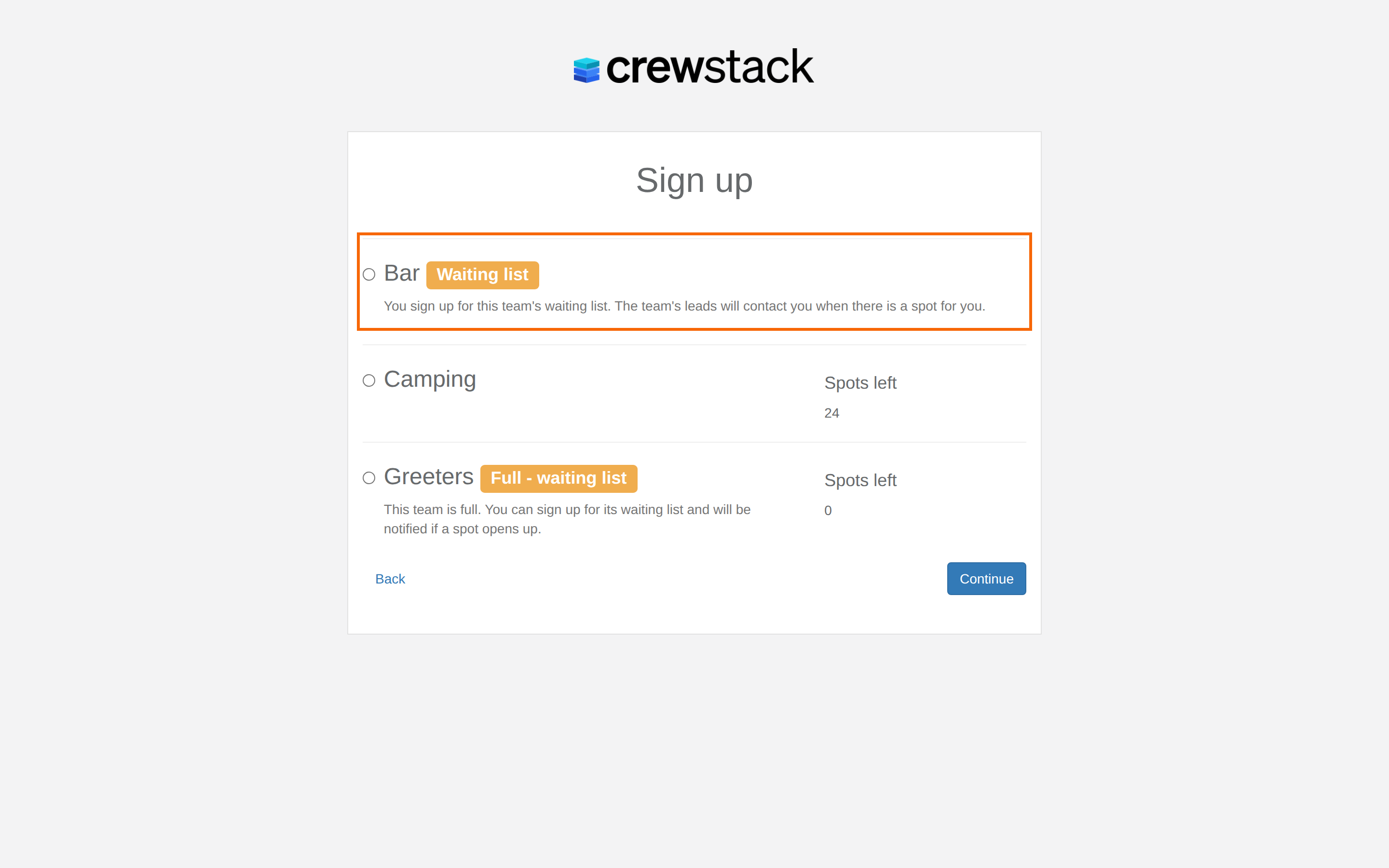
- Choosing a team: A full team with a waiting list is still shown, with the badge Full - waiting list and the text "This team is full. You can sign up for its waiting list and will be notified if a spot opens up." Full teams without a waiting list are not shown.
- If they choose the team, they go on the team's waiting list instead of getting a spot. The last step says "The … team is full. You are signing up for its waiting list and will be notified if a spot opens up."
- Teams where everyone goes through the waiting list are shown with the badge Waiting list and the text "You sign up for this team's waiting list. The team's leads will contact you when there is a spot for you." The number of free spots is not shown for that team. The last step says "You are signing up for the waiting list of the … team. The team's leads will contact you when there is a spot for you."
- If they switch to a team with free spots, they leave the waiting list again and get a spot on that team.
- Payment: If the member type requires payment, they do not pay during signup, just like on the event's waiting list. They are asked to pay once they have a spot and log in.
- Email: When the signup is complete, they get the email Member signup completed (thank you), but person put on waiting list. In that email you can use the token
<team_name>for the team's name. See Mail templates. - Unfinished signups: If they do not finish the signup, their place on the waiting list is removed after about 30 minutes, like other unfinished signups.
Invite links and the waiting list
If someone uses an invite link to a full team with a waiting list, they go on the team's waiting list, as long as the team allows their member type. The signup says "The … team you are invited to is full. You are signing up for its waiting list. Click here to cancel:" with the button Return to normal signup, which takes them back to the normal signup.
If the team has Everyone goes through the waiting list, everyone who uses the invite link goes on the team's waiting list, even when the team has free spots. The signup says "You are signing up for the waiting list of the … team you are invited to. Click here to cancel:"
If the team is full and has no waiting list, the invite is refused as before. See Invite crew members to a team.
Only show waiting lists when all teams are full
If you want your crew to choose a team with free spots while there are any:
- Go to Settings > General settings, and find the Teams section.
- Tick Only allow team waiting lists when all teams are full.
- Click Save.
Full teams with a waiting list are then only shown when choosing a team once every team the person can choose is full. Teams with Everyone goes through the waiting list are always shown. Invite links to a team's waiting list still work. The setting needs a super admin.
See the waiting list
At the top of the team page, Waiting list shows what you have chosen and how many are waiting: When full (3 waiting), Everyone (3 waiting) or Disabled.
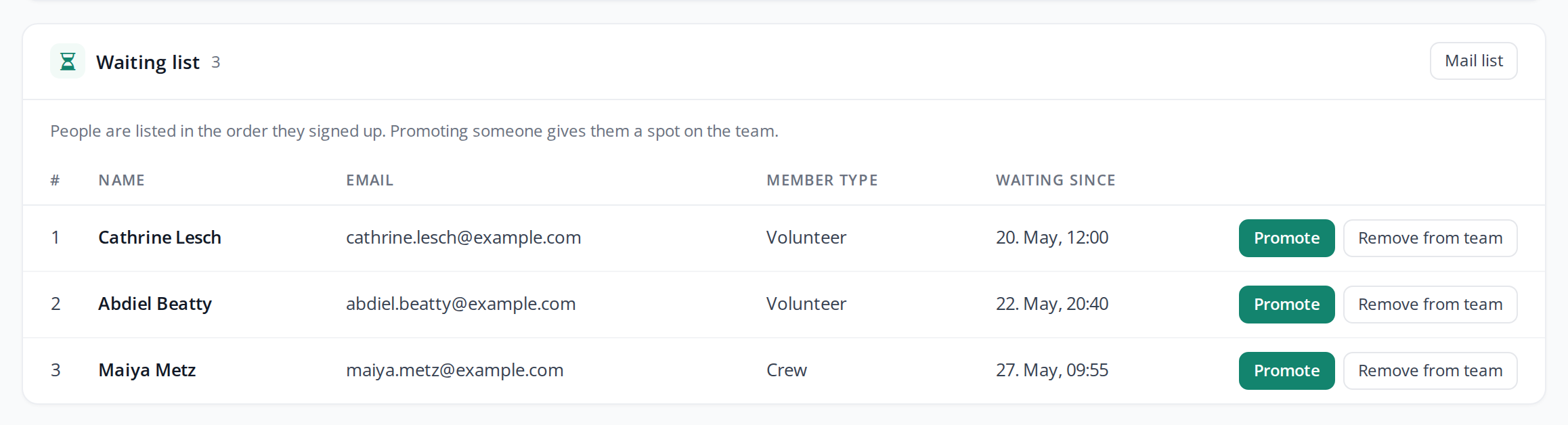
The Waiting list box shows the people waiting in the order they signed up: number, Name, Email, Member type and Waiting since. Next to each person are Promote and Remove from team, and Mail list shows the email addresses of everyone on the waiting list, so you can write to them from your own email program.
Under Teams > Teams, the number of people waiting is shown in brackets after the team's spots, for example 3 / 3 (+3).
While they are on the waiting list, they:
- do not take up a spot and do not count towards the team's member limit or its member type limits.
- do not use the team's product pools and do not get the team's products.
- are not in the team's Members list.
Give someone a spot
- Click Promote next to the person in the Waiting list box.
- Confirm in the browser's dialog.
The person gets a spot on the team, is removed from the waiting lists of any other teams, and gets the email Member bumped from waiting list.
- Admins can promote even when the team is full. The dialog then warns that the team goes over its member limit.
- Team leaders only get the Promote button when the team has a free spot. That also applies to teams where everyone goes through the waiting list. If the person is also on the waiting list of other teams, the team leader must be allowed to remove people from those teams.
You can also use Add to team under Actions. If the person is on the team's waiting list, they get a spot the same way.
While they wait
- When they log in, they only see the waiting list page. They have no access to the Crewstack app and cannot pick shifts.
- Move to waiting list on a person's profile keeps the person on their teams as a waiting list position and frees up their spot. You do not need to remove them from the teams yourself.
- If you make a person on the waiting list a team leader with Set as teamlead, they leave the waiting list, and their places on other teams' waiting lists are removed.
Pitfalls
- A spot removes the other waiting lists: If you give a person a spot on one team, they lose their place on the waiting list of the other teams.
- The team ends up over its limit: If an admin promotes someone into a full team, the team has more people than spots. Raise the Member limit if it should add up.
- The team leader cannot promote: The team is full. Raise the Member limit, or let an admin promote.
- The waiting list is not shown when choosing a team: Check whether Only allow team waiting lists when all teams are full is switched on and whether there are still teams with free spots.
Didn't find the answer? Write to support@crewstack.io.