

If you want to assign a pool of products to a specific team for manual distribution, you will first need to set a budget for that team for the specific product type. Let's look at the steps:
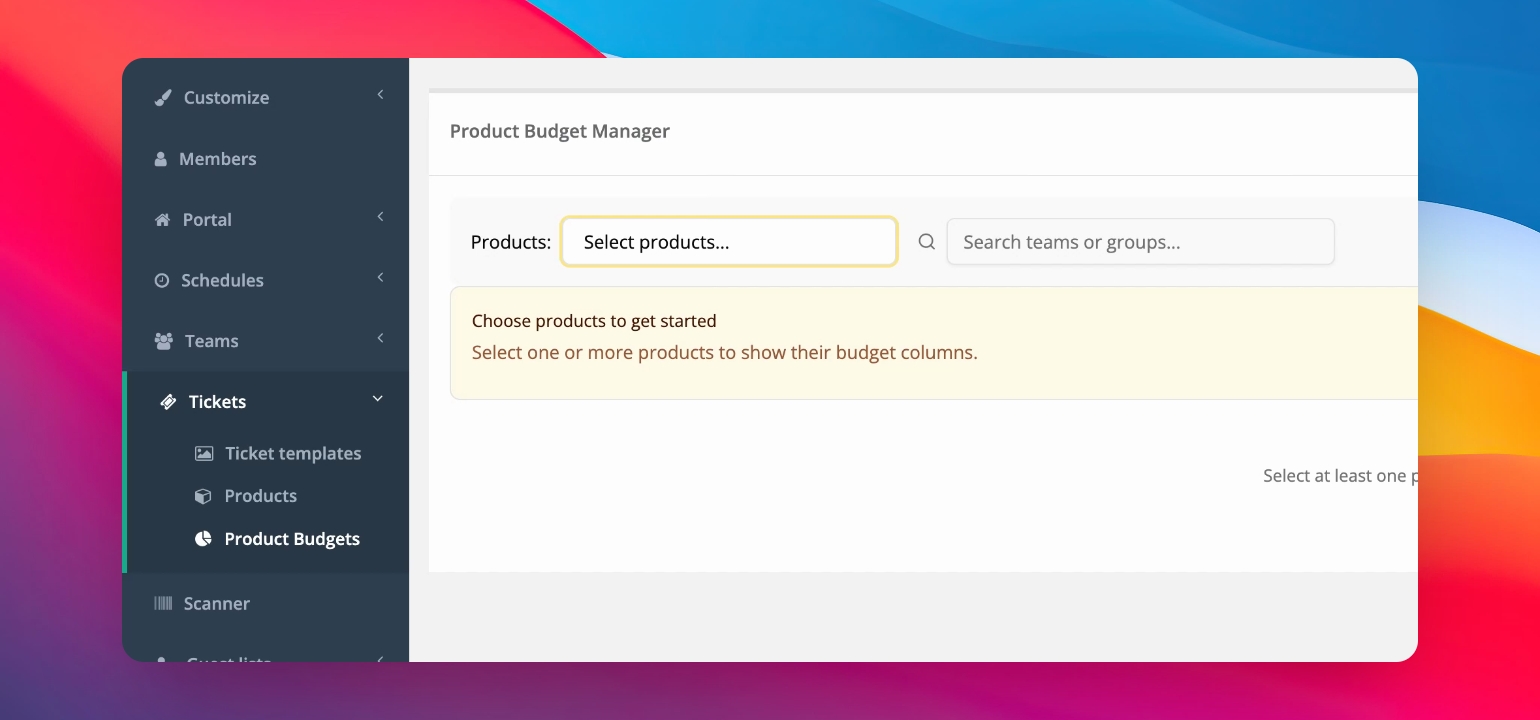
Step 1: Give Team Meal Vouchers
Start by determining how many meal vouchers you want to provide. For example, give your VIP security team a pool of 30 meal vouchers.
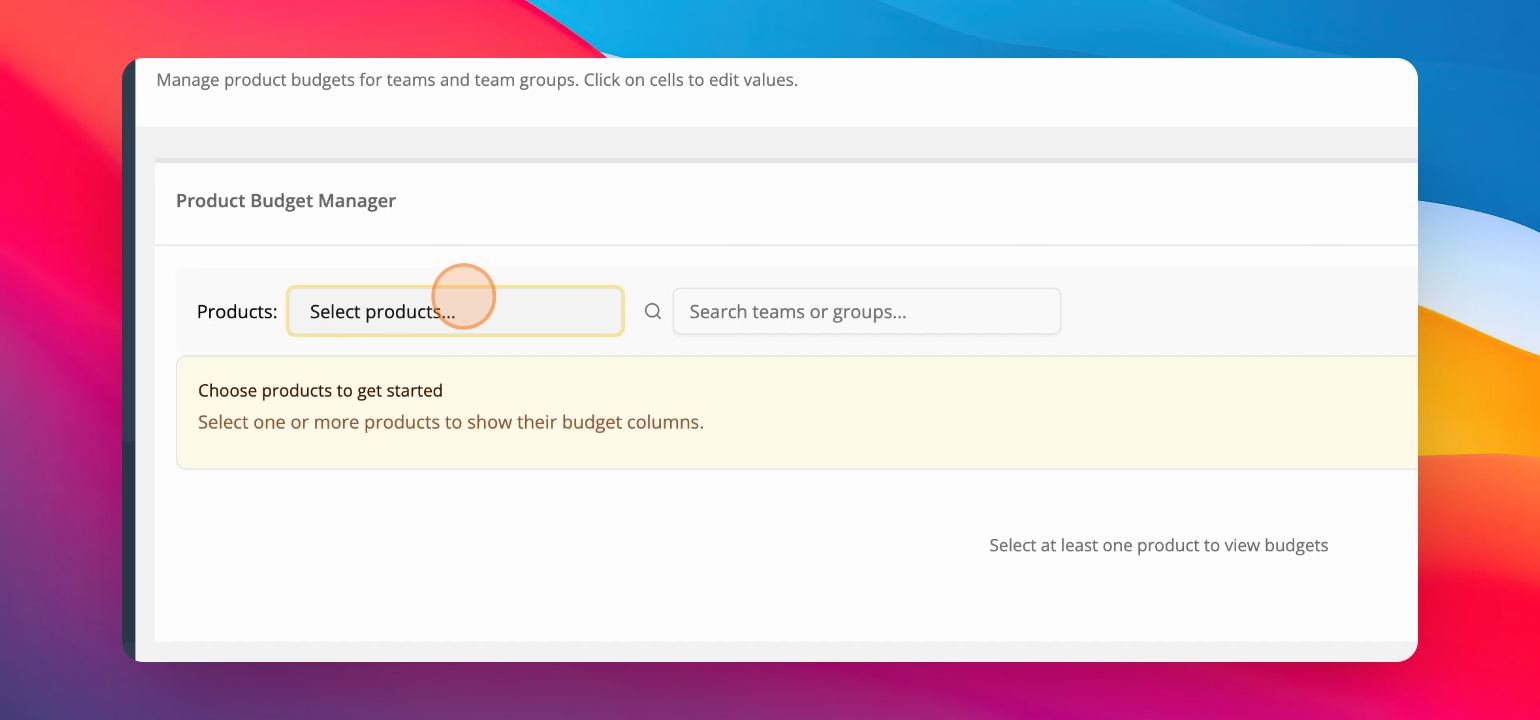
Step 2: Find Meal Vouchers
Go into tickets and product budgets, then search for your meal vouchers to set the product budgets for those.
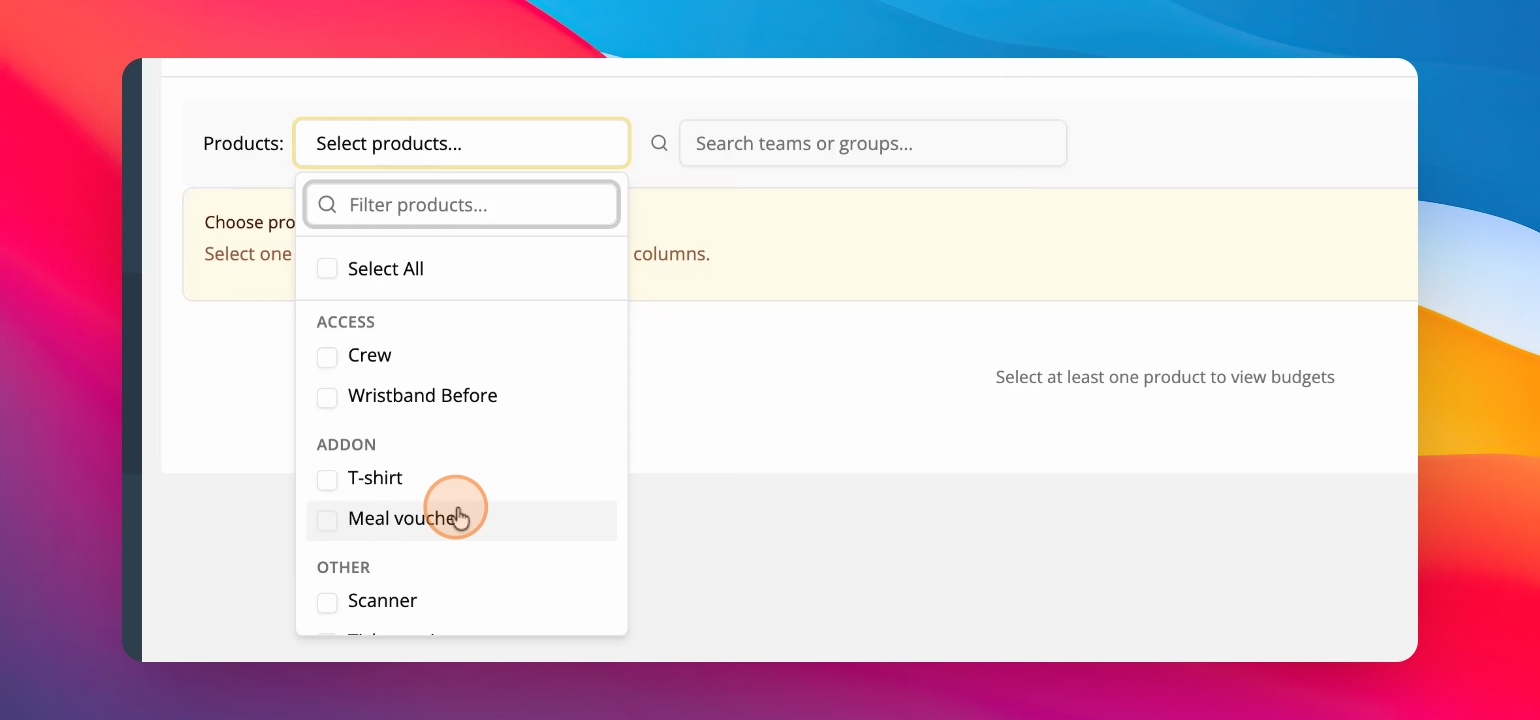
Step 3: Set Meal Voucher Budget
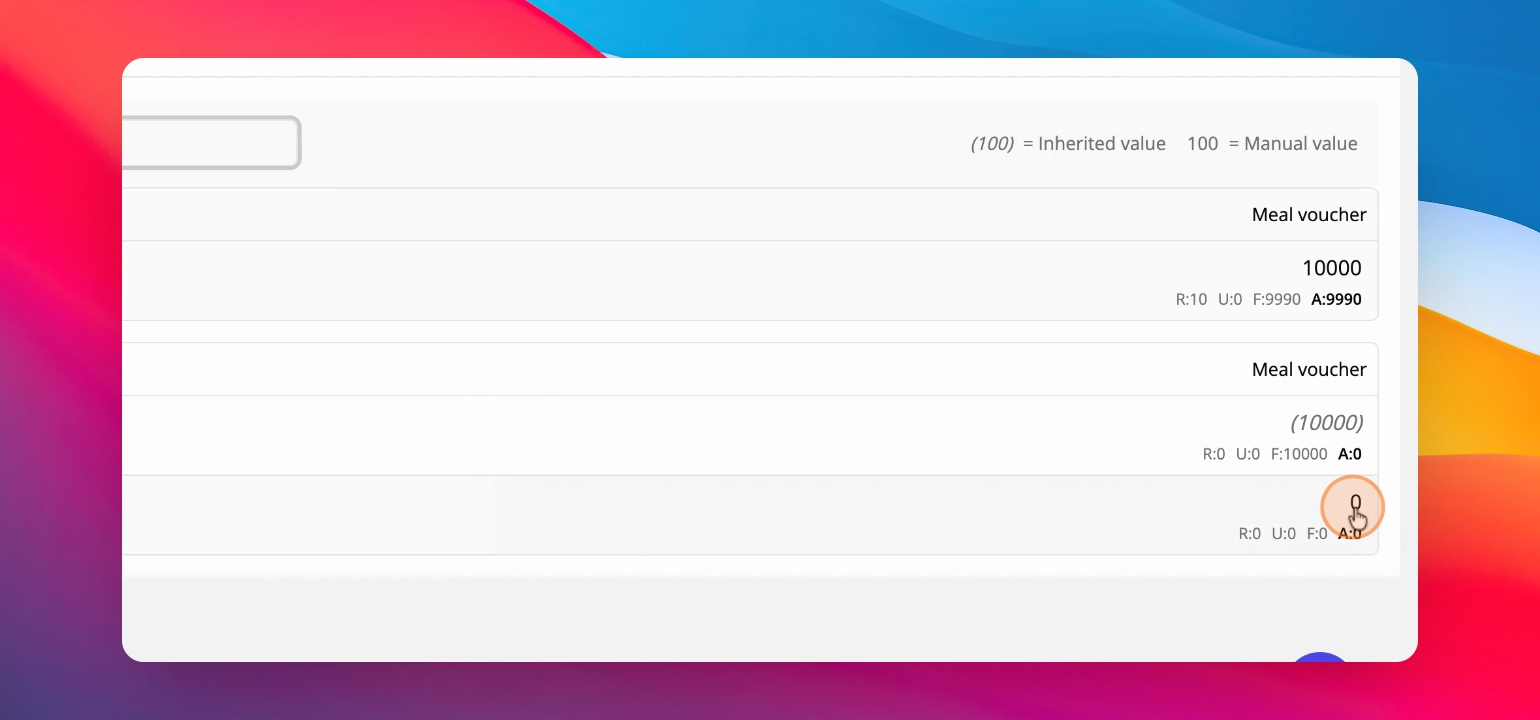
Click 0 next to the team and enter a value of 30 to assign that many meal vouchers to the VIP security team.
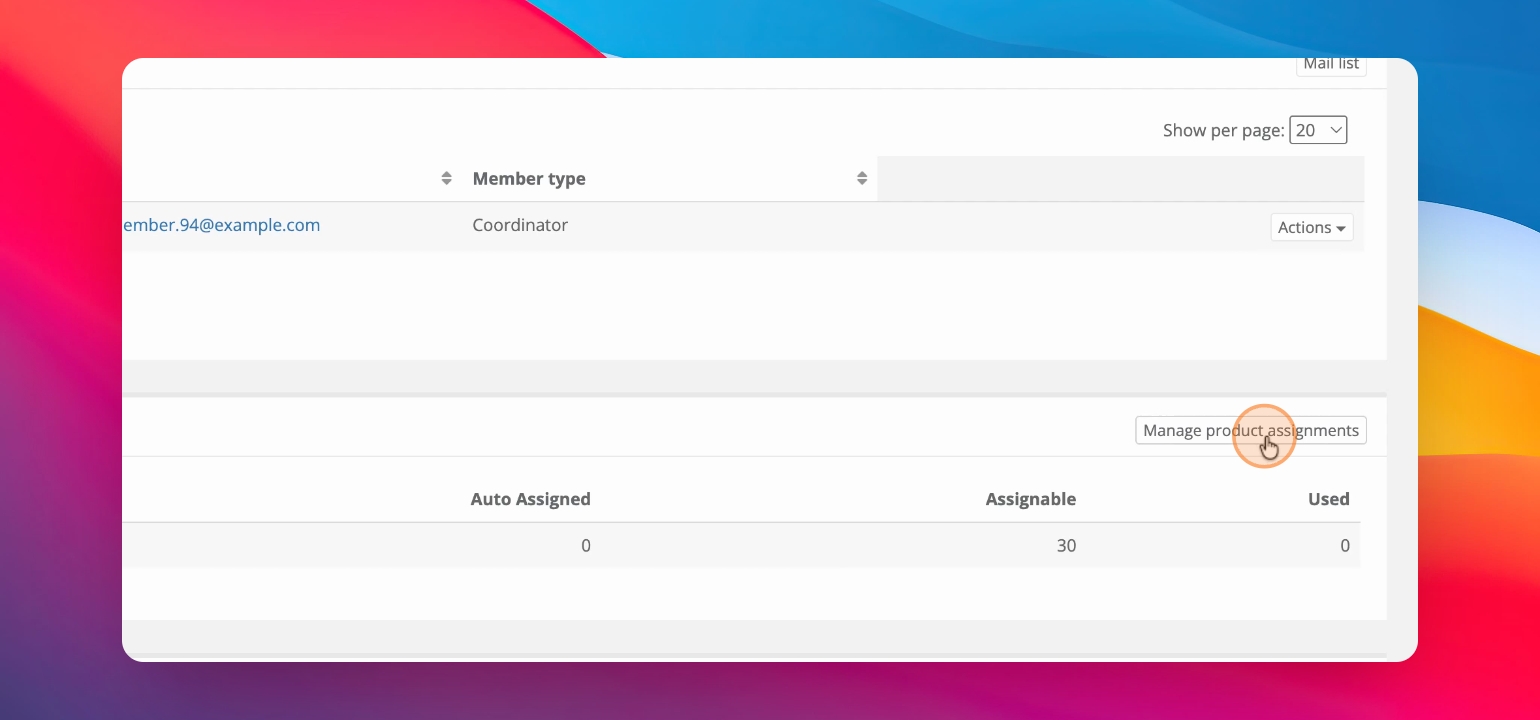
Step 4: Manage Product Assignments
After setting the budget, click on manage product assignments on the team page to see the list of assignable meal vouchers and team members.
Step 5: Assign Meal Vouchers
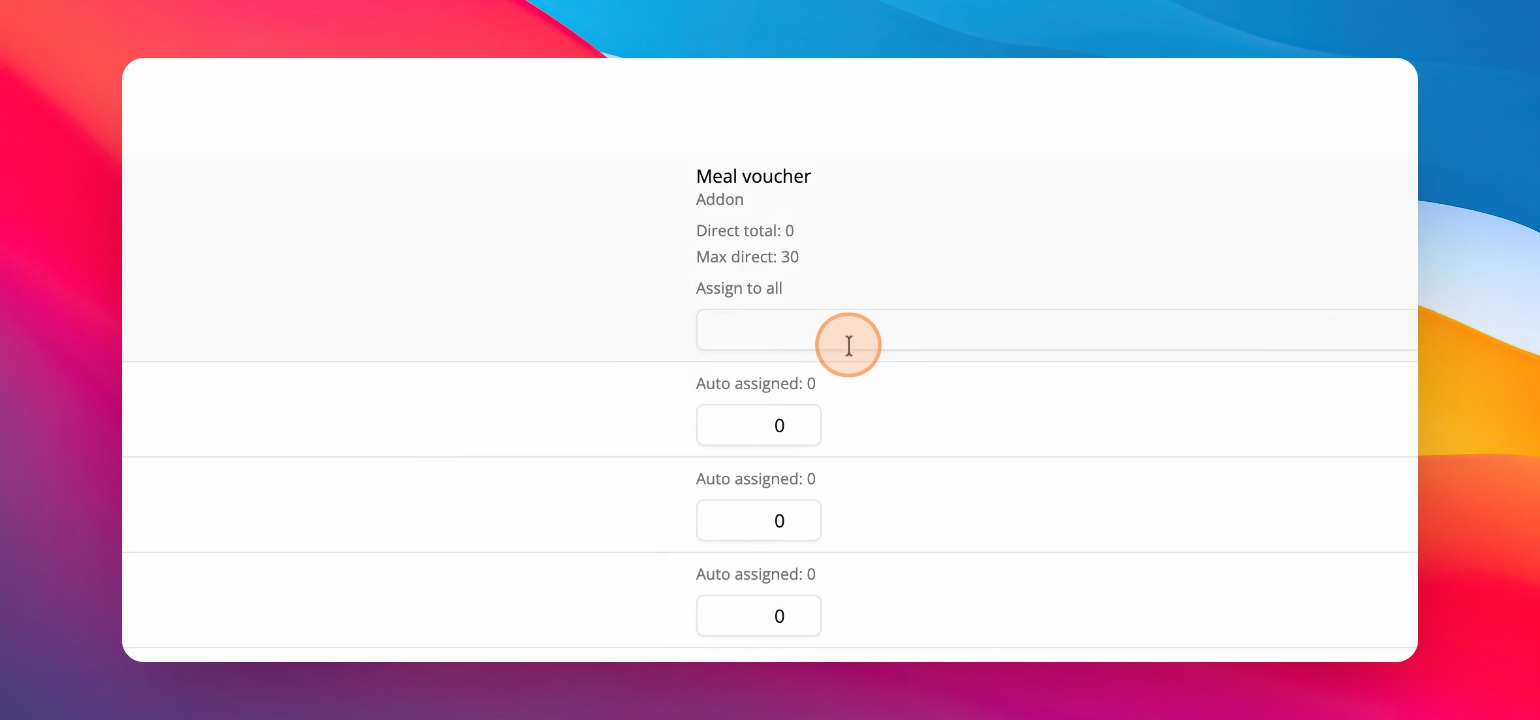
Distribute the vouchers, for instance, give each member 2 vouchers and adjust as necessary based on the total available.
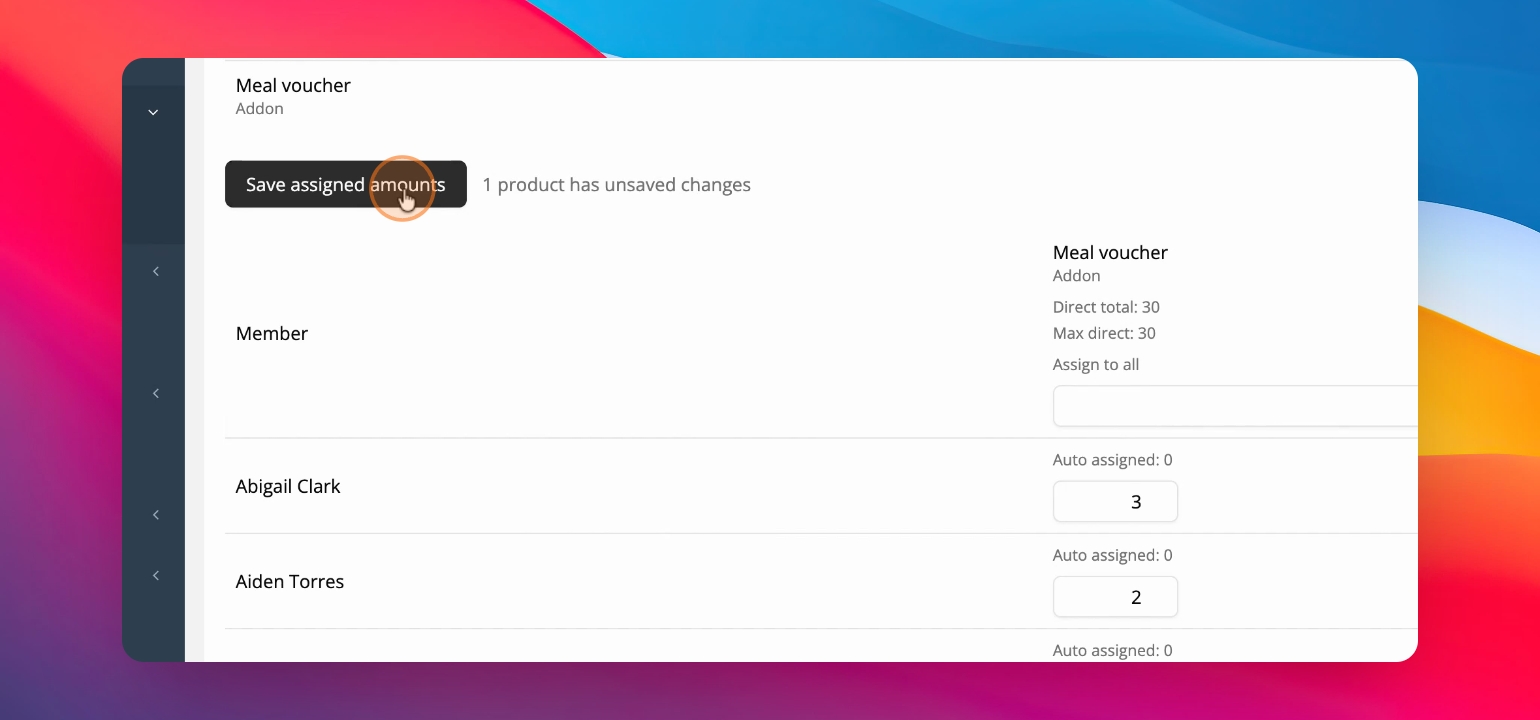
Step 6: Save Assignments
After distributing the vouchers, make sure to save the assigned amounts to finalize the allocation.
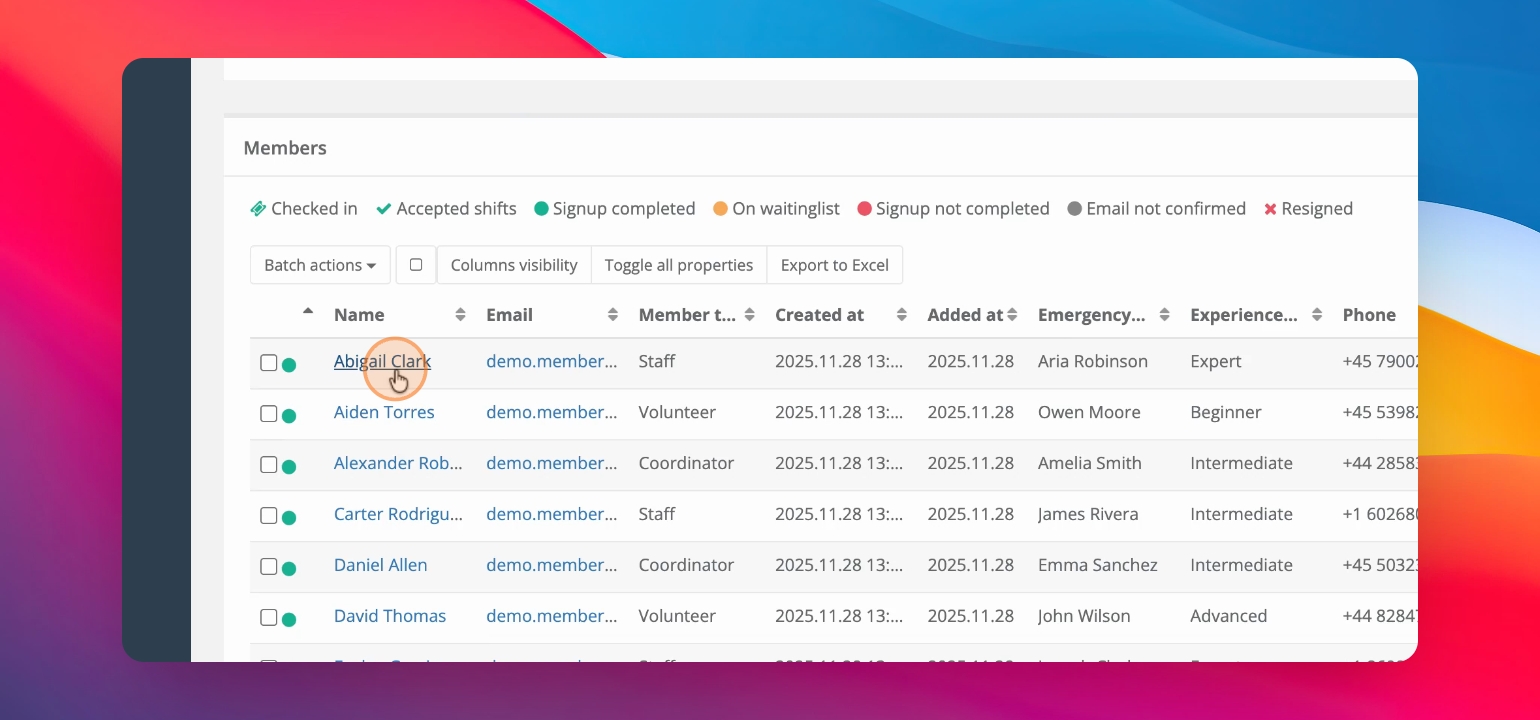
Step 7: Verify Assignments
Return to the team page to confirm that the meal vouchers have been assigned correctly, ensuring each member has the intended number of vouchers.
This process allows you to effectively assign a pool of products to a team and empowers team leads to manage the distribution among their members.