

Let's do it together!
Step 1: Check spam
Ask the user to check their spam folder for the confirmation email.
Step 2: Confirm email address
Verify that the user’s email address was entered correctly during signup.
Step 3: Search for member
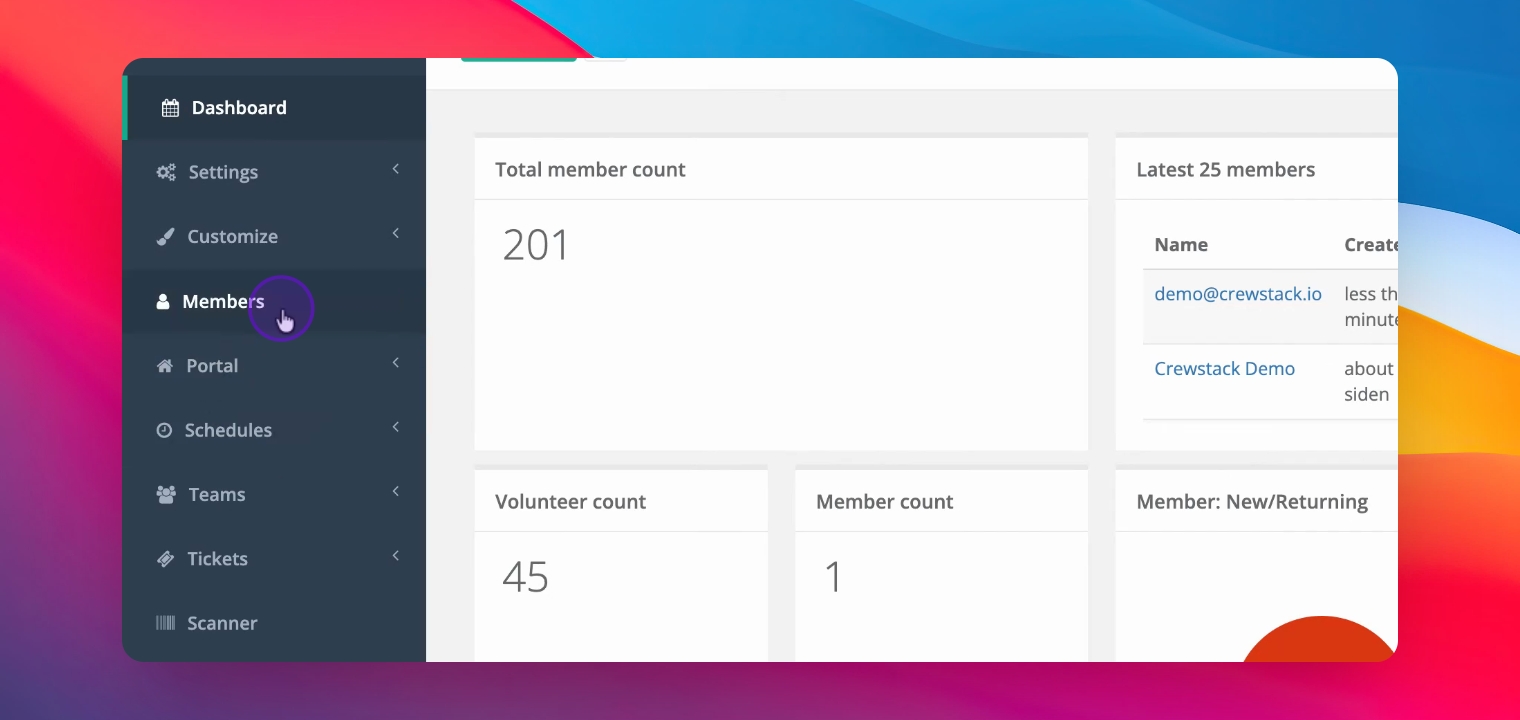
Go to Members and search for the user who signed up.
Step 4: Use advanced search
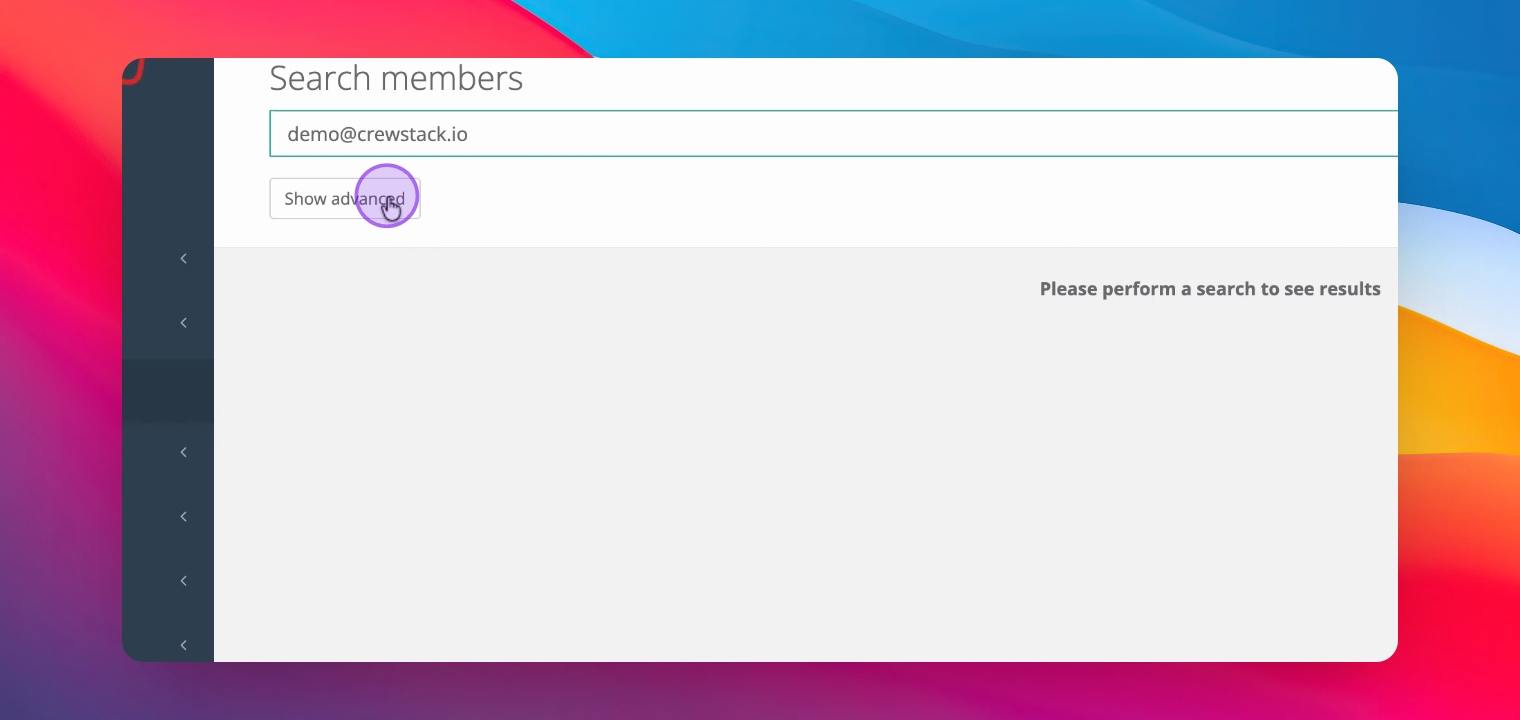
Utilize Advanced Search to find users who haven't confirmed their email.
Step 5: Set filters
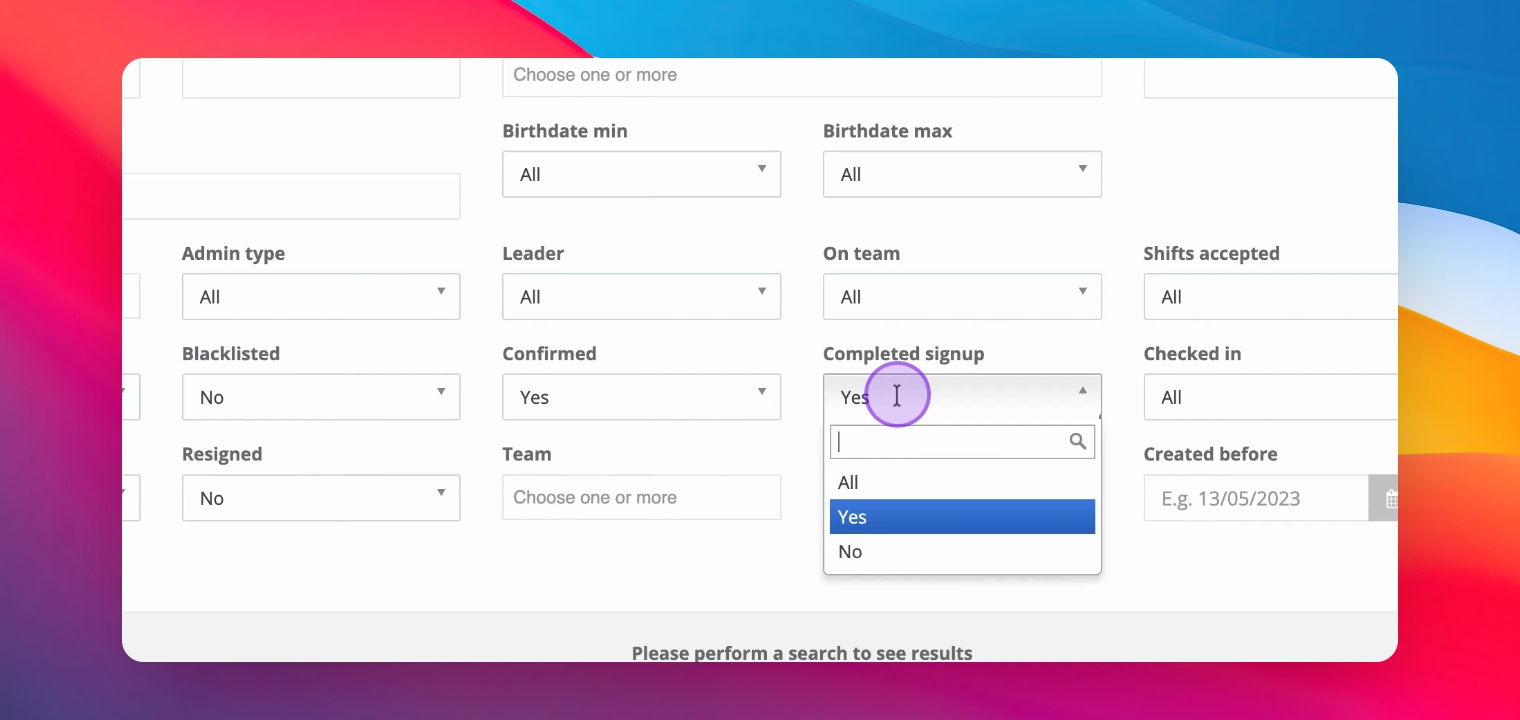
Ensure both Completed Sign Up and Confirmed filters are set to All.
Step 6: Verify email confirmation
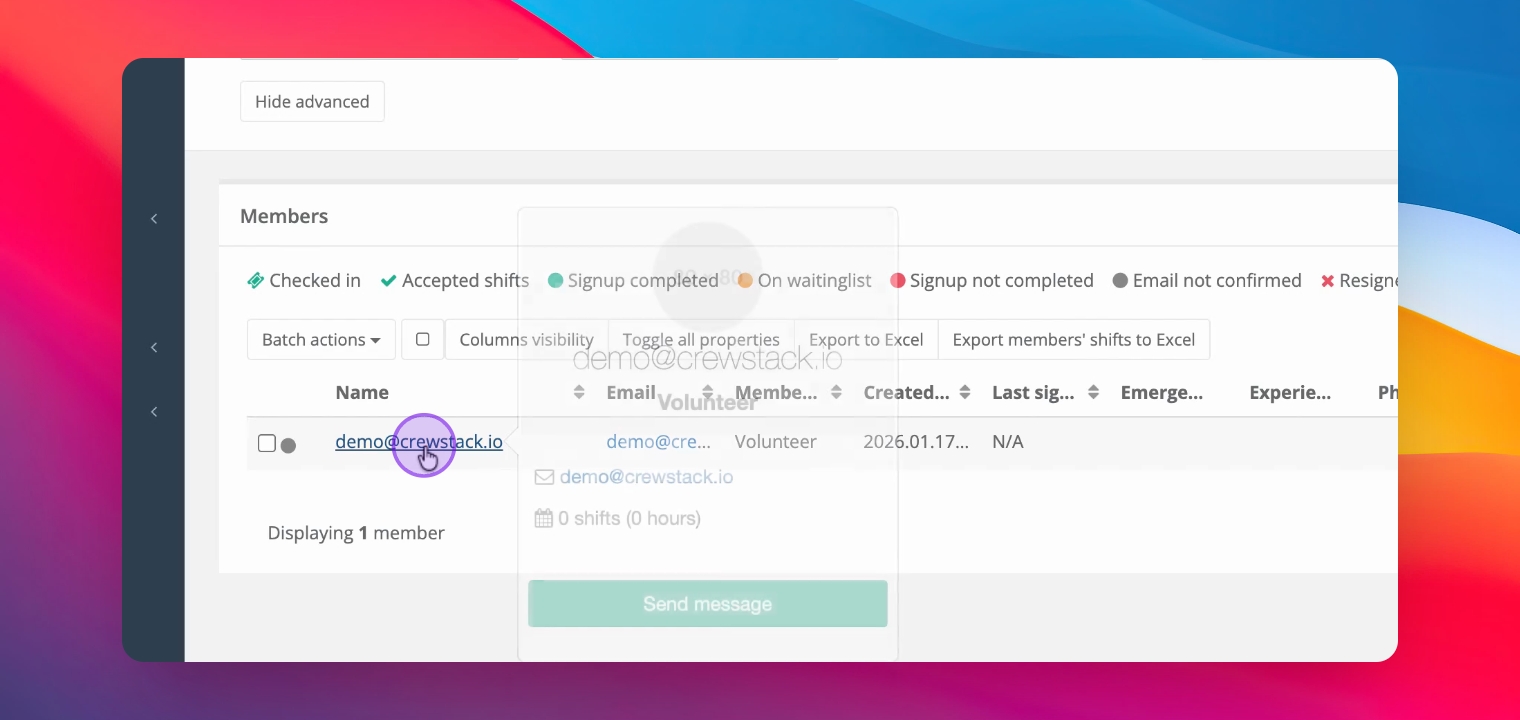
Look for the user with a gray dot indicating their email is not confirmed.
Step 7: Resend confirmation
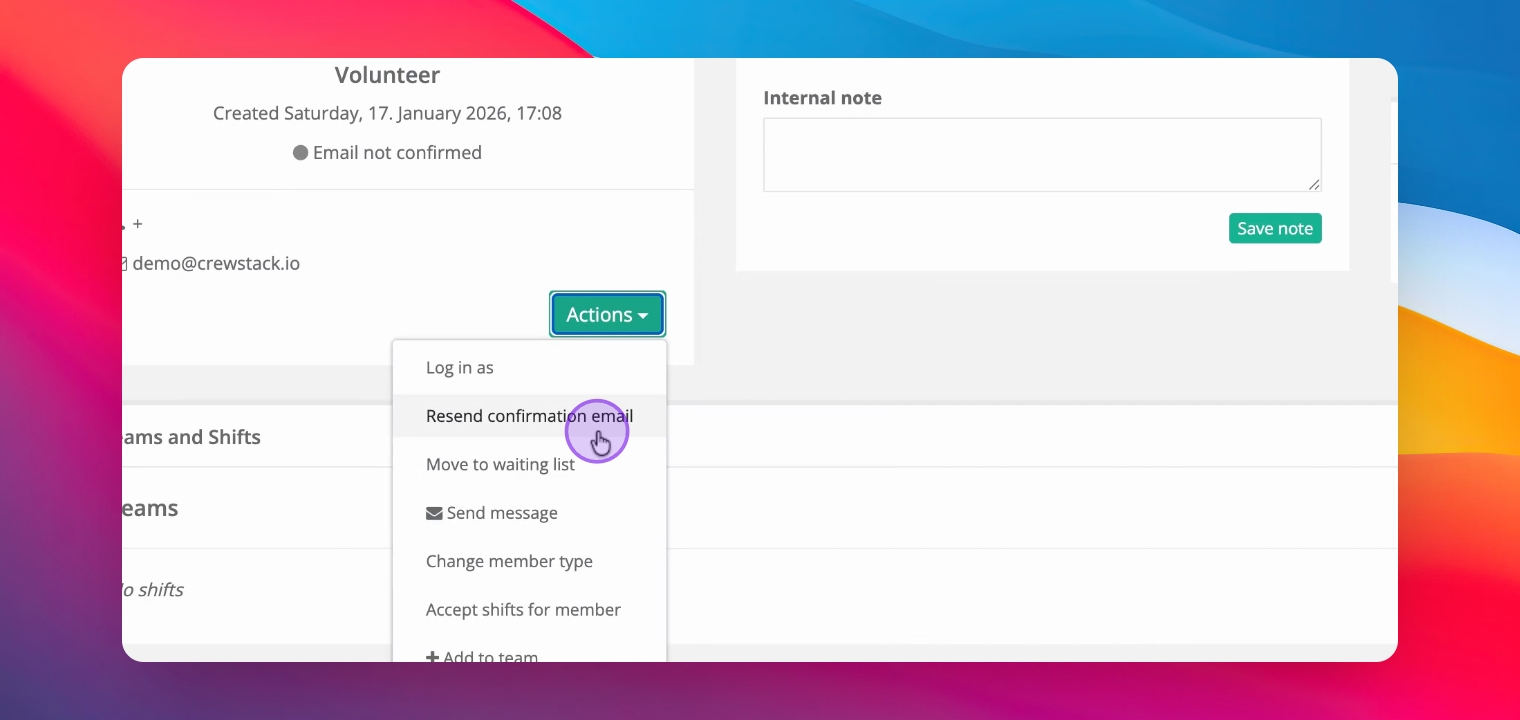
Go to the user's profile and under Actions, click Resend Confirmation Mail.
Step 8: Check organizer settings
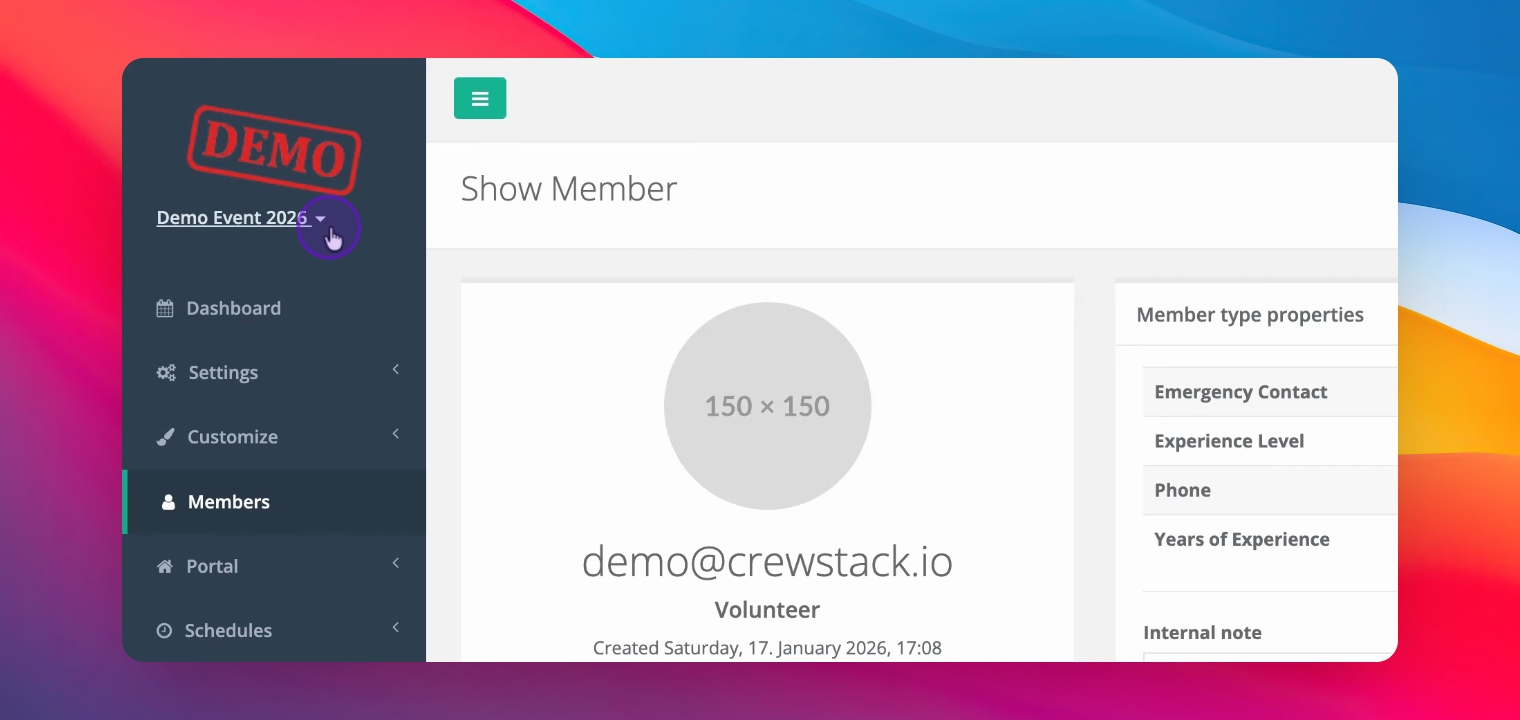
Access Organizer Settings, then Users and Admins to further investigate.
Step 9: Search previous events
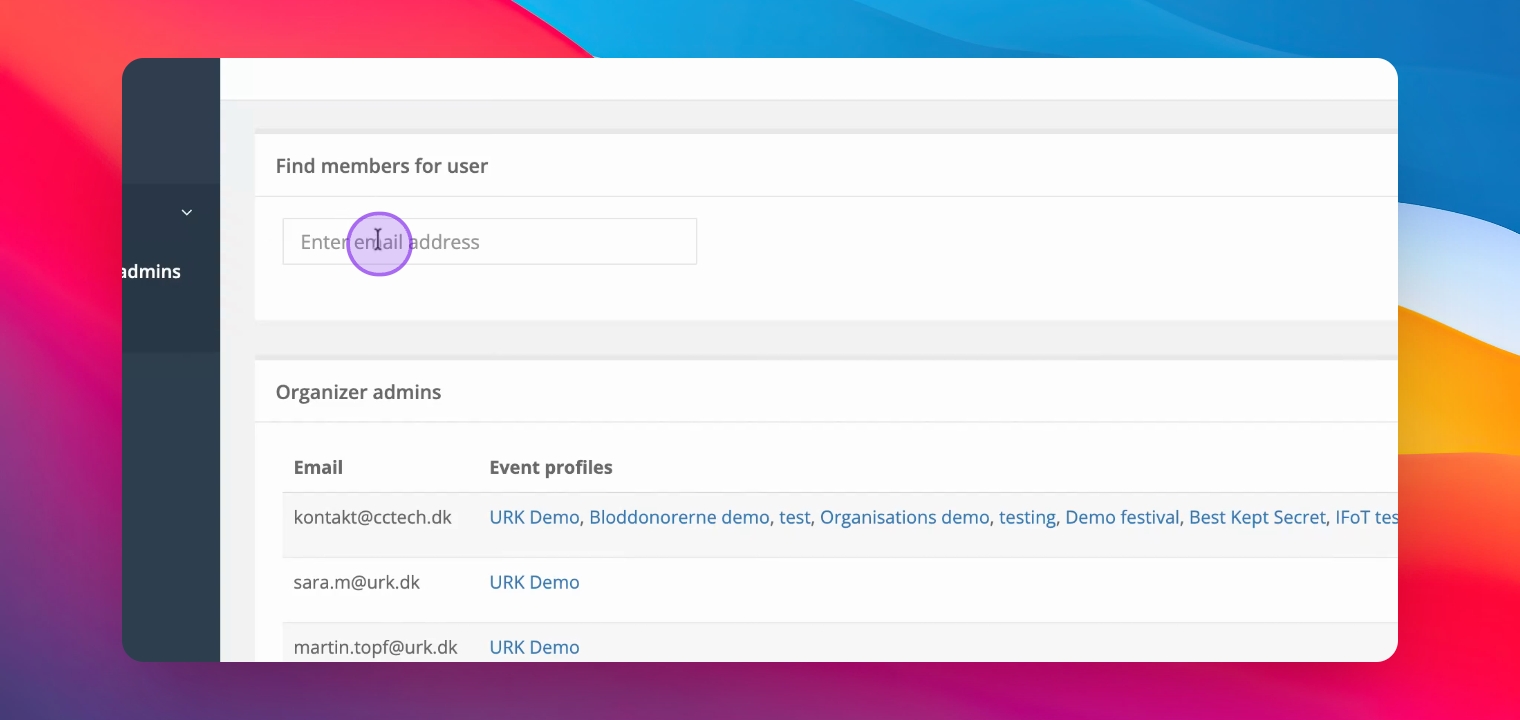
Look for the same email to see if there is a profile from a previous event that wasn't confirmed.
Troubleshooting
User still doesn't receive email
Check if the email address is correct and resend the confirmation.
FAQ
What if the email is in spam?
Advise the user to mark it as not spam to ensure future emails are received.
How can I check if the email is confirmed?
Look for a green dot next to the user's name in the members list.