

This guide explains how to add an attachment, such as a ticket or parking permit PDF, to a product. Let's look at the steps:
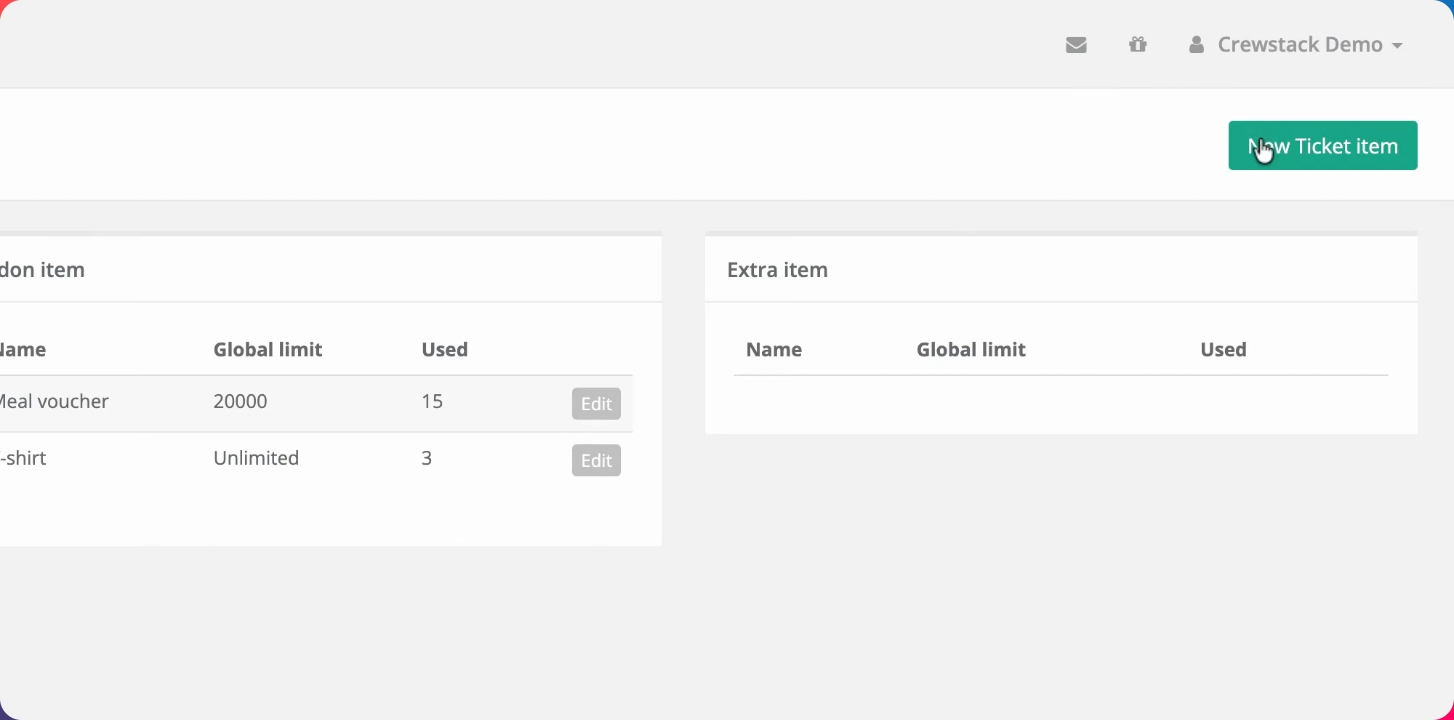
Step 1: Create New Product
When creating a new product, such as a parking permit, start by setting up the item as you would for any other product.
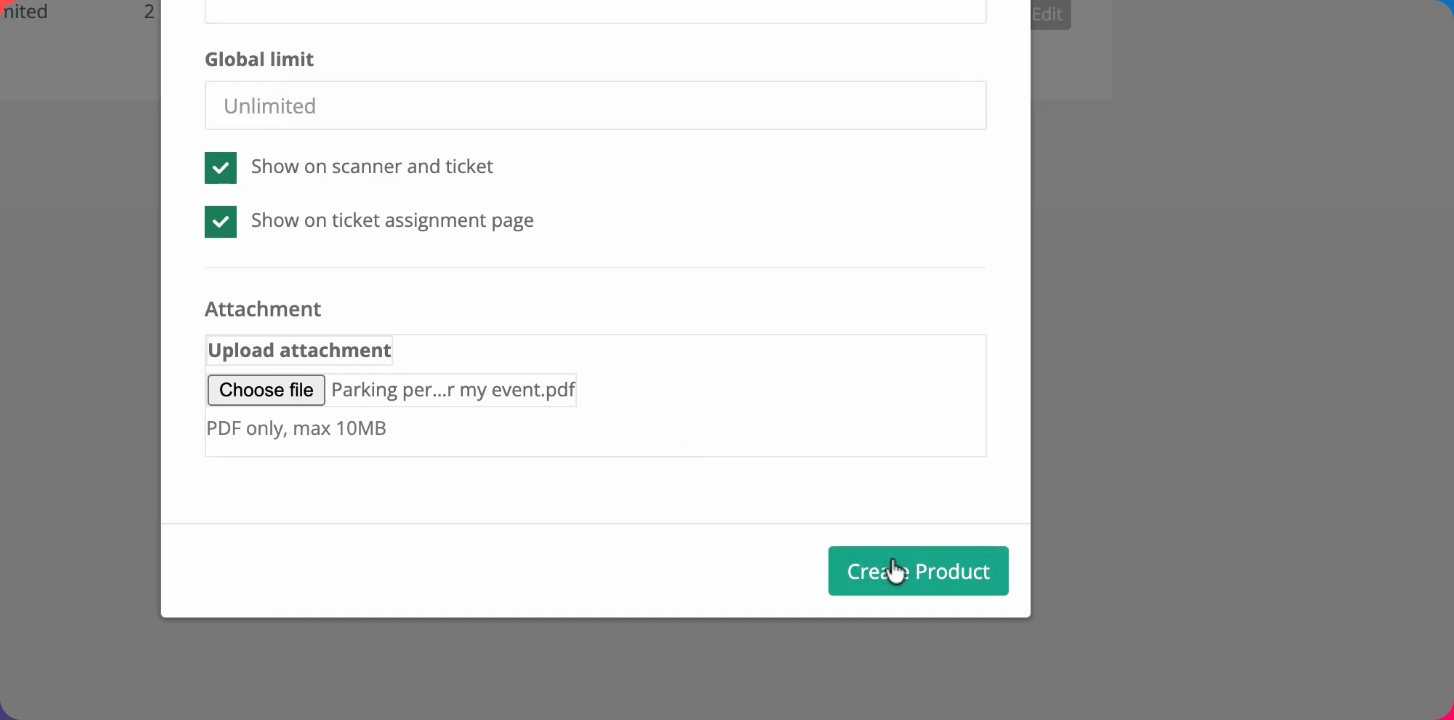
Step 2: Attach PDF File
Attach your PDF file, like the parking permit, to the product before finalizing its creation.
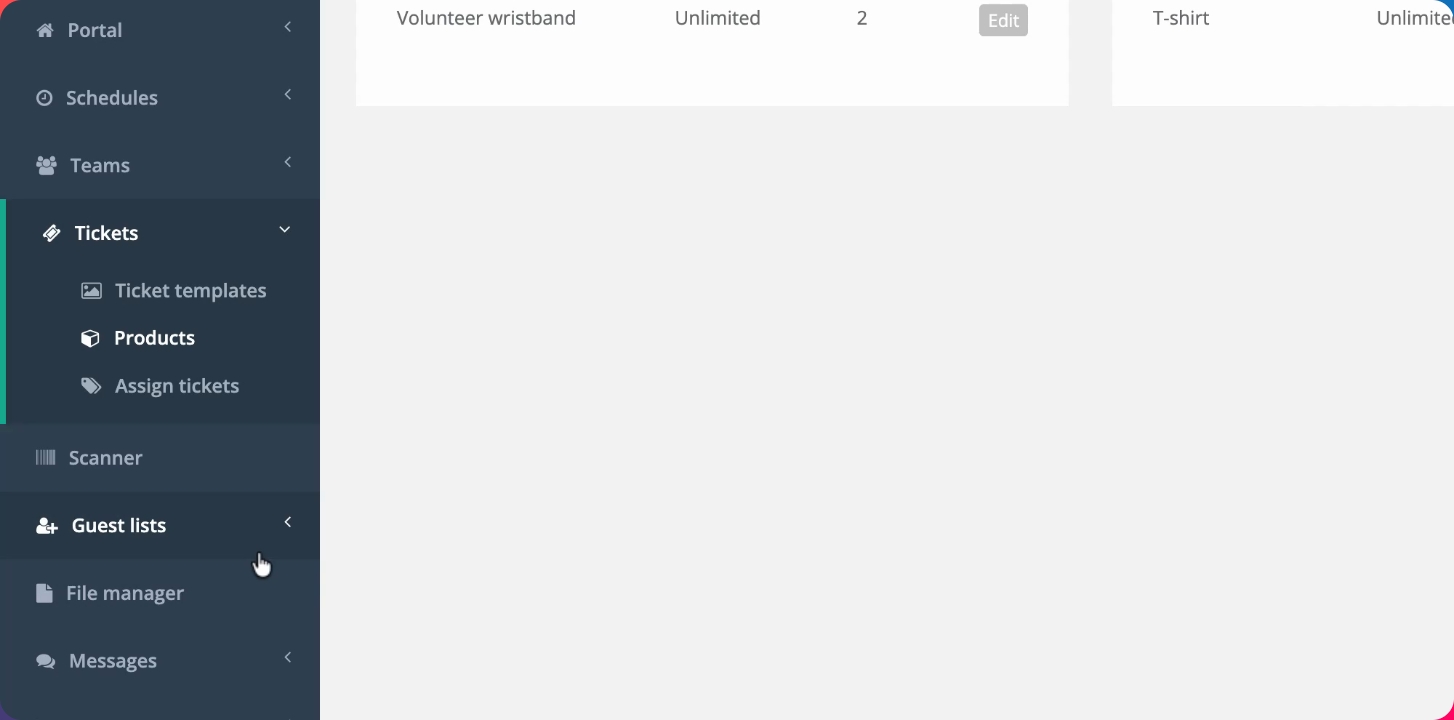
Step 3: Assign Product to Guest
Add the product to a guest list and assign it to a guest. The guest will receive both their standard ticket and the attached PDF.
Step 4: Send Ticket to Guest
Send the ticket to the guest. The guest will receive an email notification.
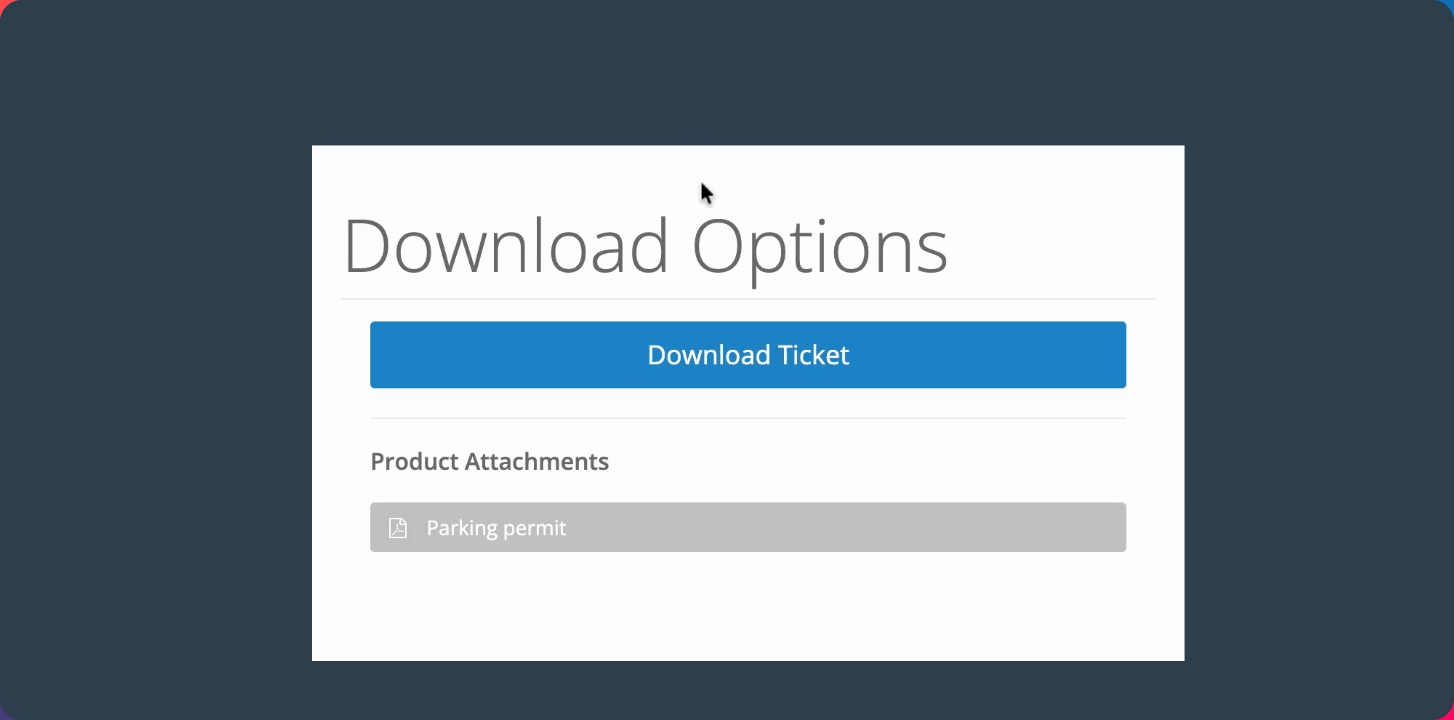
Step 5: Guest Downloads Ticket and Attachment
When the guest clicks the link in the email, they will see options to download both their ticket and the attached PDF, such as the parking permit.
This is how you can add attachments to products for your guests.